How to Connect Wireless Headphones to Android Phone: A Step-by-Step Guide
Wireless headphones have become a popular choice for listening to music, watching videos, making calls, and playing games. They offer convenience, comfort, and freedom from tangled wires. Whether you have Samsung, Sony, JBL, Bose, or another brand of Bluetooth headphones, connecting them to an Android smartphone is usually quick and simple.
If you are using wireless headphones for the first time, this guide will help you connect them to your Android phone, troubleshoot common issues, and enjoy a smooth listening experience.
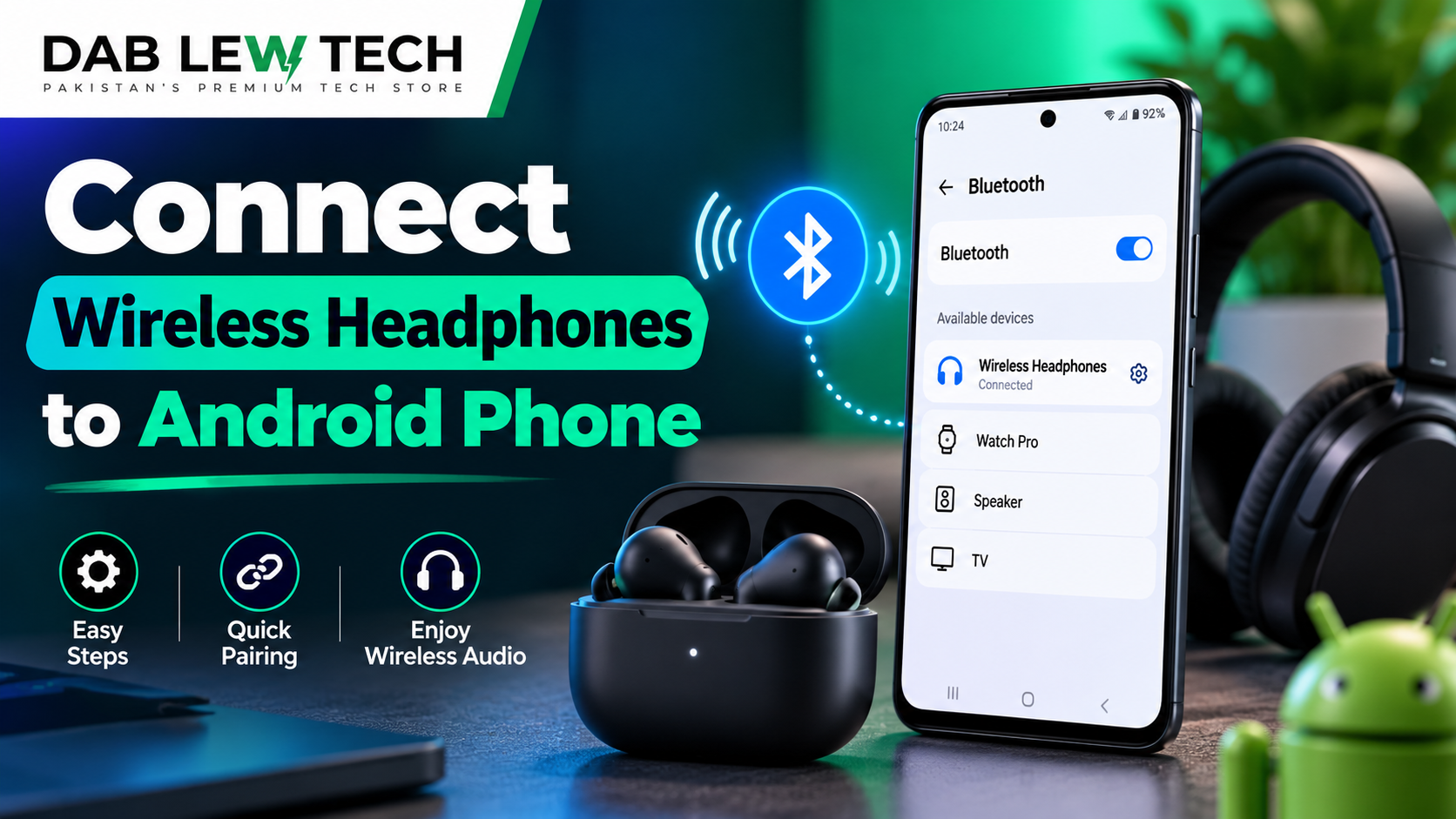
Step 1: Turn On Your Wireless Headphones
Before connecting your wireless headphones, make sure they have enough battery power. If necessary, charge them using the supplied charging cable.
Press and hold the power button to turn on your headphones. Most wireless headphones have an LED indicator or voice notification confirming that they are powered on.
If you are using wireless earbuds, removing them from their charging case may turn them on automatically.
Step 2: Enable Bluetooth on Your Android Phone
Bluetooth allows your Android smartphone to communicate wirelessly with compatible devices.
Follow these simple steps:
Open the Settings app on your Android phone.
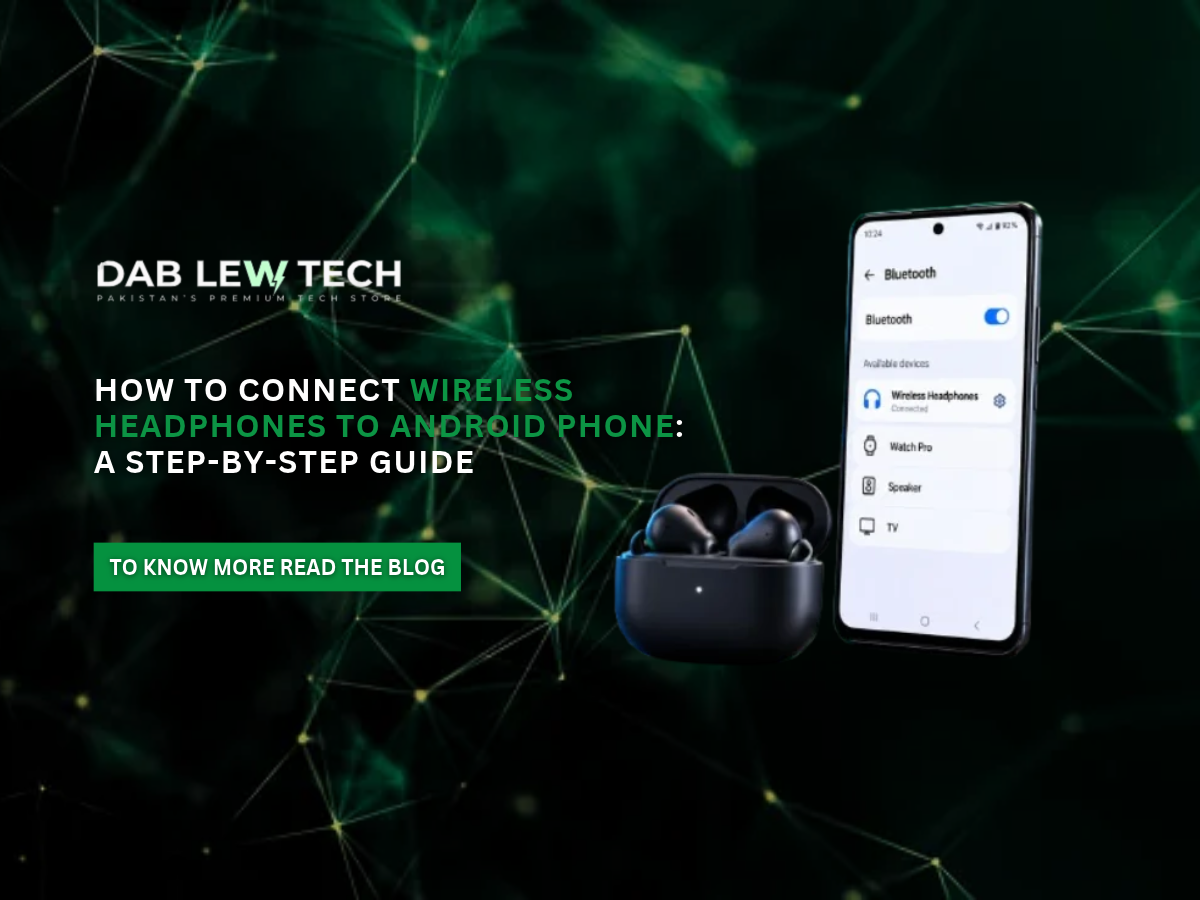
Tap Bluetooth or Connected Devices, depending on your phone model.
Select Pair New Device if this option appears.
Make sure Bluetooth is turned on.
Alternatively, swipe down from the top of your screen to open the Quick Settings panel and tap the Bluetooth icon.
Step 3: Put Your Headphones in Pairing Mode
Your wireless headphones must be in pairing mode before your Android phone can detect them.
For most headphones, press and hold the power or Bluetooth button for a few seconds until the LED indicator starts flashing.
Some earbuds require you to press and hold a button on the charging case.
The exact pairing process depends on the headphone brand and model, so check the manufacturer's instructions if necessary.
Step 4: Connect Your Headphones to Your Android Phone
Once your headphones are in pairing mode, return to your phone's Bluetooth settings.
Your Android phone will search for nearby Bluetooth devices. When your headphone model appears under available devices, tap its name.
If a pairing confirmation message appears, select Pair.
After a successful connection, your headphones should appear under connected devices. You can now listen to music, watch videos, or make calls wirelessly.
Step 5: Test Your Wireless Headphones
Open your favorite music application or play a YouTube video to check whether the sound is coming through your headphones.
Adjust the volume using your phone's volume buttons or the controls on your headphones.
Most Android phones automatically reconnect to previously paired headphones when Bluetooth is enabled and the headphones are turned on.
How to Fix Wireless Headphones Not Connecting to Android
Sometimes Bluetooth headphones fail to connect. Try these troubleshooting methods:
Restart Bluetooth: Turn Bluetooth off and on again.
Charge your headphones: Low battery power can cause connection problems.
Move devices closer: Keep your headphones near your Android phone.
Disconnect other devices: Your headphones may already be connected to another smartphone or computer.
Forget and reconnect: Open Bluetooth settings, select your headphones, tap Forget or Unpair, and repeat the pairing process.
Restart your phone: Restarting your Android device may resolve temporary Bluetooth issues.
If these methods do not work, consult your headphone manufacturer's troubleshooting instructions.
Final Thoughts
All in all, connecting wireless headphones to an Android phone is a straightforward process. Simply enable Bluetooth, activate pairing mode, select your headphones, and confirm the connection. Once connected, you can enjoy wireless music, clearer hands-free communication, and greater convenience during everyday activities. If connection problems occur, basic troubleshooting steps will usually help you restore your Bluetooth connection quickly.
Stay Tuned
Want to learn more about the latest technology, useful tech tips, and easy-to-follow guides? Stay tuned to Pakistan’s Premium Tech Store. Discover helpful tutorials, expert insights, and the latest updates on smartphones, wireless headphones, gadgets, and accessories. Stay connected with us to make smarter tech choices and get the most out of your devices!