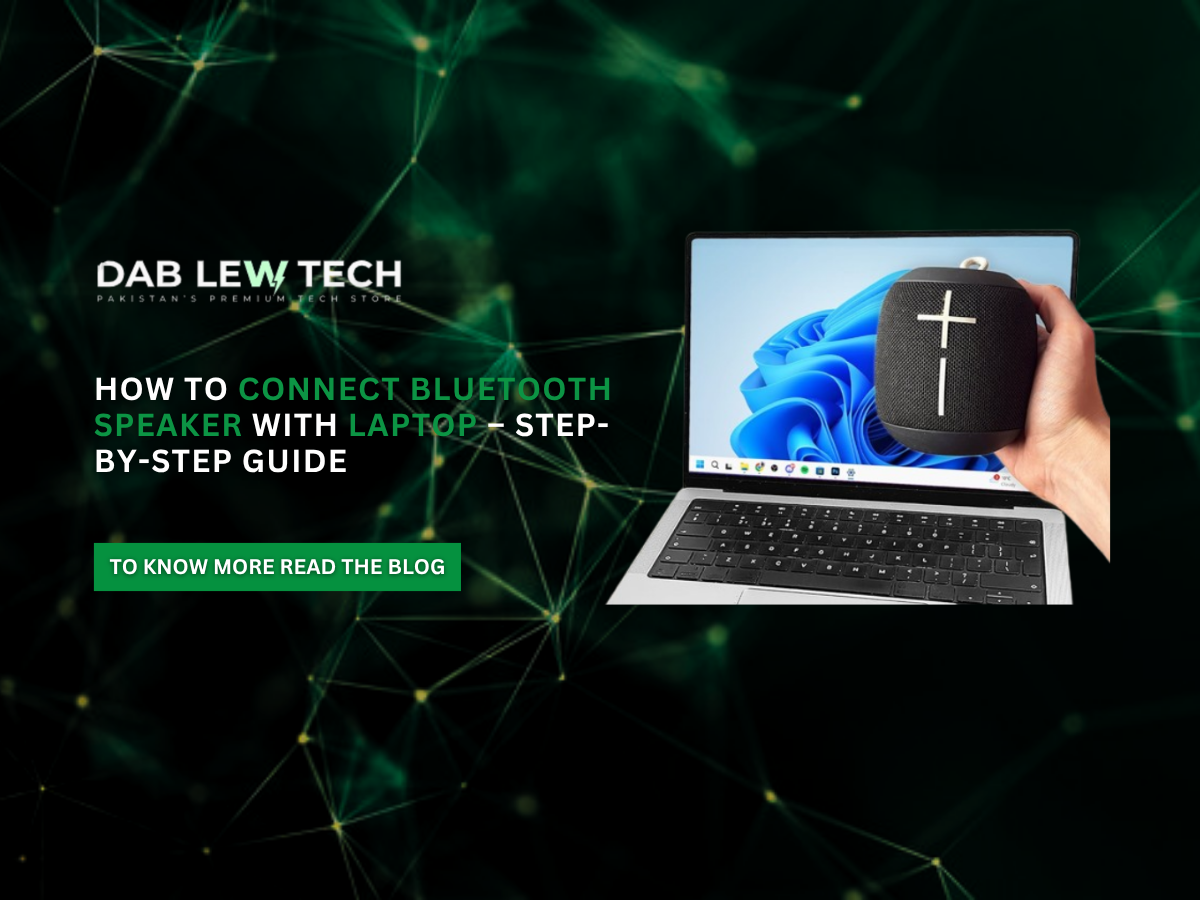
How to Connect Bluetooth Speaker With Laptop – Step-by-Step Guide
Connecting a Bluetooth speaker to your laptop is an easy way to enjoy better sound while watching movies, listening to music, attending online meetings, or playing games. The best part is that you don't need any cables or complicated setup.
Whether you're using Windows 10, Windows 11, or a MacBook, this guide will help you connect a Bluetooth speaker to your laptop in just a few simple steps.
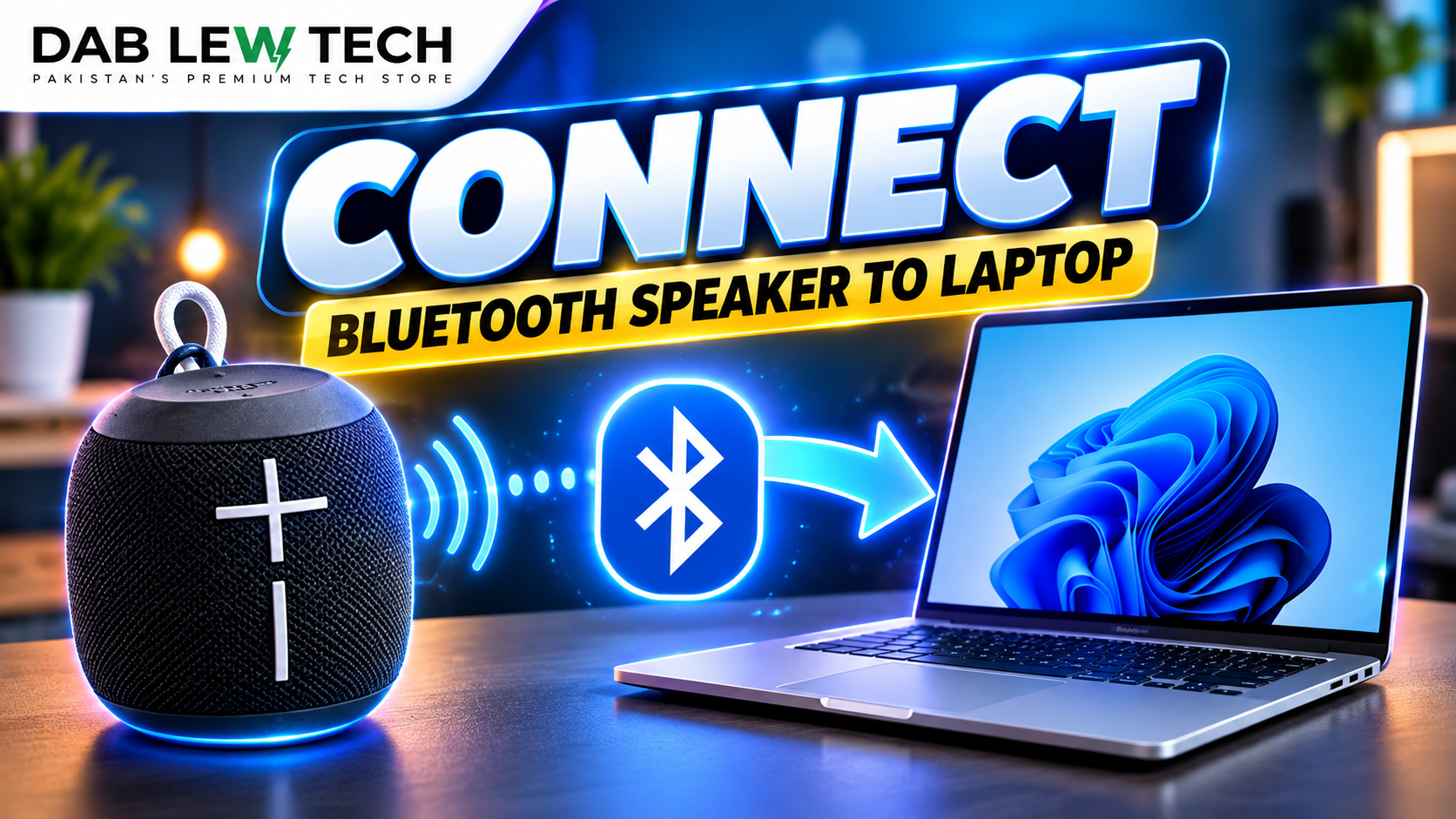
How to Connect Bluetooth Speaker to Windows 10 or Windows 11 Laptop
If you're using a Windows laptop, follow these steps to connect your wireless speaker.
Step 1: Turn On Your Bluetooth Speaker
Switch on your Bluetooth speaker and activate pairing mode. Most speakers have a dedicated Bluetooth button. Press and hold it until the indicator light starts blinking.
Step 2: Enable Bluetooth on Your Laptop
Click the Start button.
Open Settings.
Select Bluetooth & devices (Windows 11) or Devices > Bluetooth & other devices (Windows 10).
Turn Bluetooth On.
Step 3: Add Your Bluetooth Speaker
Click Add device or Add Bluetooth or other device.
Select Bluetooth.
Wait for your laptop to discover nearby devices.
Click your Bluetooth speaker's name.
Select Connect if prompted.
Once connected, your laptop should display a confirmation message.
Step 4: Select Your Speaker as Audio Output
If sound still plays through your laptop speakers, go to Settings > System > Sound and select your Bluetooth speaker under the output devices.
Your speaker is now ready to use!
How to Connect Bluetooth Speaker to MacBook
Connecting a Bluetooth speaker to a MacBook is equally simple.
Turn on your Bluetooth speaker and enable pairing mode.
Click the Apple menu on your MacBook.
Open System Settings > Bluetooth.
Turn Bluetooth on if it's disabled.
Find your speaker in the available devices list.
Click Connect next to its name.
If the audio doesn't automatically switch, open System Settings > Sound > Output and choose your Bluetooth speaker.
Bluetooth Speaker Not Connecting to Laptop? Try These Fixes
Sometimes, your laptop may fail to detect or connect to a Bluetooth speaker. Here are some quick solutions.
1. Restart Bluetooth
Turn Bluetooth off and back on to refresh the connection.
2. Check Pairing Mode
Make sure your Bluetooth speaker is discoverable and isn't already connected to another device.
3. Move Devices Closer
Keep your speaker near your laptop to reduce connection problems caused by distance or interference.
4. Remove and Reconnect the Speaker
Open your laptop's Bluetooth settings, remove the paired speaker, and follow the pairing process again.
5. Update Bluetooth Drivers
On Windows, open Device Manager, locate your Bluetooth adapter, and check for driver updates.
Frequently Asked Questions (FAQs)
Can I connect any Bluetooth speaker to my laptop?
Most Bluetooth-enabled laptops support standard Bluetooth speakers, provided the devices are compatible.
Why is my Bluetooth speaker connected but has no sound?
Your laptop may still be using its built-in speakers. Open sound settings and select your Bluetooth speaker as the audio output.
Can I connect a Bluetooth speaker without Bluetooth?
Yes. If your laptop doesn't have built-in Bluetooth, you can use a compatible USB Bluetooth adapter.
Final Thoughts
All in all, learning how to connect Bluetooth speaker with laptop is straightforward. Simply turn on Bluetooth, activate pairing mode, select your speaker, and adjust the audio output settings.
Whether you're using Windows or macOS, these simple steps will help you enjoy wireless audio without unnecessary cables or setup difficulties.










.png)