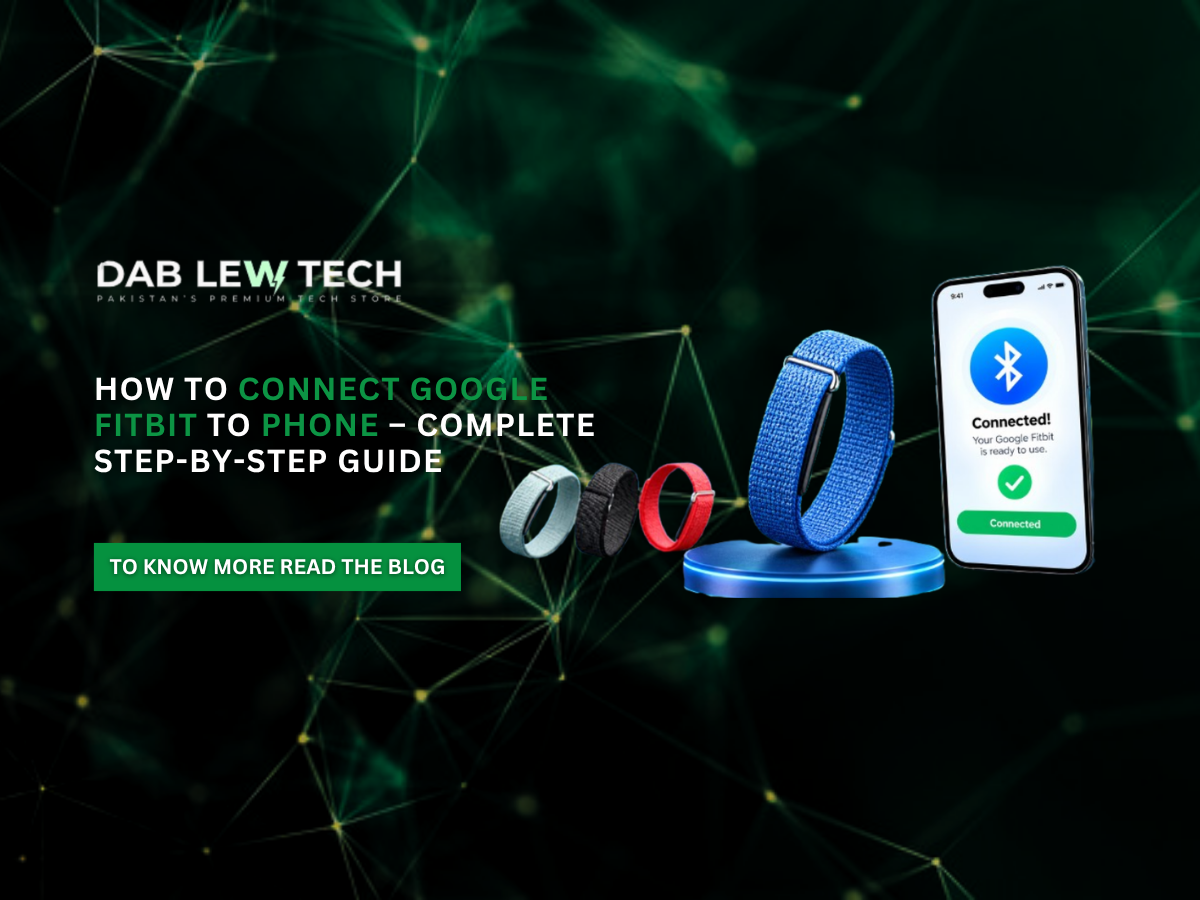
How to Connect Google Fitbit to Phone – Complete Step-by-Step Guide
Connecting your Google Fitbit to your smartphone helps you track daily steps, heart rate, sleep patterns, workouts, and fitness progress. Whether you have an Android phone or an iPhone, setting up your Fitbit is straightforward.
In this blog, you'll learn how to connect Google Fitbit to your phone, sync your fitness data, and solve common Bluetooth connection problems.
What You Need Before Connecting Fitbit
Before starting, make sure you have:
A compatible Google Fitbit smartwatch or fitness tracker.
An Android phone or iPhone with Bluetooth enabled.
The Google Health app installed on your smartphone.
A Google account to sign in.
A stable internet connection.
Keep your Fitbit charged and close to your phone during setup.
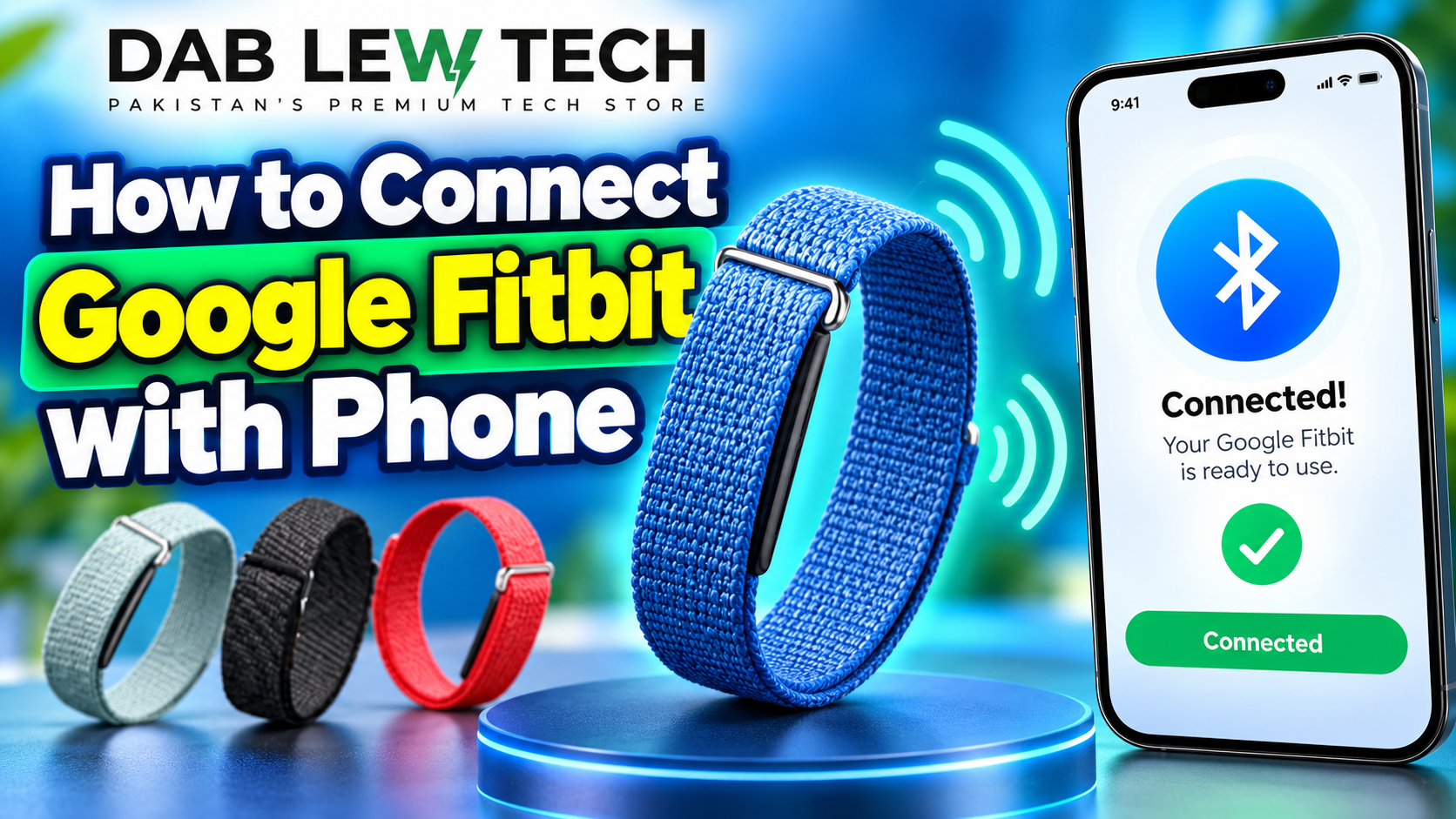
How to Connect Google Fitbit to Android Phone
Follow these simple steps to pair your Fitbit with an Android smartphone.
Step 1: Turn On Bluetooth
Open your phone's Settings, select Bluetooth, and turn it on.
Step 2: Install the Google Health App
Open the Google Play Store, search for Google Health, and install the official app.
Step 3: Sign In With Google
Launch the app and select Sign in with Google. Choose your Google account and complete the initial setup.
Step 4: Add Your Fitbit Device
Open the Google Health app.
Tap Connections at the top left.
Select Add device.
Choose your Fitbit model.
Follow the on-screen pairing instructions.
Step 5: Complete the Connection
Approve any Bluetooth pairing requests and required permissions. Once connected, your Fitbit will appear under your devices in the app.
How to Connect Google Fitbit to iPhone
You can also connect your Fitbit to a compatible iPhone.
Open the App Store and install the Google Health app.
Enable Bluetooth in your iPhone settings.
Open the app and sign in with your Google account.
Tap Connections > Add device.
Select your Fitbit smartwatch or tracker.
Follow the on-screen instructions to complete pairing.
Once connected, your Fitbit can automatically sync supported activity and health information.
How to Fix Fitbit Not Connecting to Phone
If your Google Fitbit won't connect, try these troubleshooting methods.
1. Restart Bluetooth
Turn Bluetooth off for a few seconds and switch it back on.
2. Restart Your Devices
Restart both your smartphone and Fitbit, then attempt pairing again.
3. Keep Devices Close
Place your Fitbit near your smartphone to maintain a reliable Bluetooth connection.
4. Check App Permissions
Ensure Bluetooth and other necessary permissions are enabled for the Google Health app.
5. Remove and Reconnect Fitbit
Disconnect the Fitbit through the app, forget the device in your phone's Bluetooth settings, and repeat the setup process.
Frequently Asked Questions
Can I connect Google Fitbit to any phone?
Fitbit works with many compatible Android smartphones and iPhones. Check Google's compatibility requirements before installation.
Does Fitbit need Bluetooth to connect?
Yes. Fitbit smartwatches and fitness trackers generally use Bluetooth to pair and sync with smartphones.
Why is my Fitbit not syncing?
Bluetooth connectivity problems, outdated software, or missing permissions can prevent syncing.
Final Thoughts
Learning how to connect Google Fitbit to your phone is simple when you follow the correct steps. Install the Google Health app, enable Bluetooth, sign in with your Google account, and pair your Fitbit through the app.
Once connected, you can conveniently monitor your daily fitness activities, sleep, and overall progress directly from your smartphone.
Stay Updated
Want to stay ahead in the world of technology? Explore more helpful tech blogs, step-by-step tutorials, troubleshooting guides, and the latest tech updates at Pakistan's premium tech store. From smart gadgets to everyday tech solutions, we make technology simple and accessible. Keep reading, stay informed, and discover smarter ways to use technology with Pakistan's premium tech store.