How to Fix a Smart Watch Not Connecting to Your Phone
Smartwatches make everyday life easier by helping you track fitness activities, receive notifications, monitor your health, and manage calls directly from your wrist. However, connectivity issues can prevent your smartwatch from syncing with your smartphone, leaving you unable to access important features. If your smartwatch is not connecting to your phone, there are several simple troubleshooting steps you can try before seeking professional assistance.
Whether you use an Apple Watch, Samsung Galaxy Watch, or another Bluetooth-enabled smartwatch, this guide explains the common causes of connection problems and how to fix them.
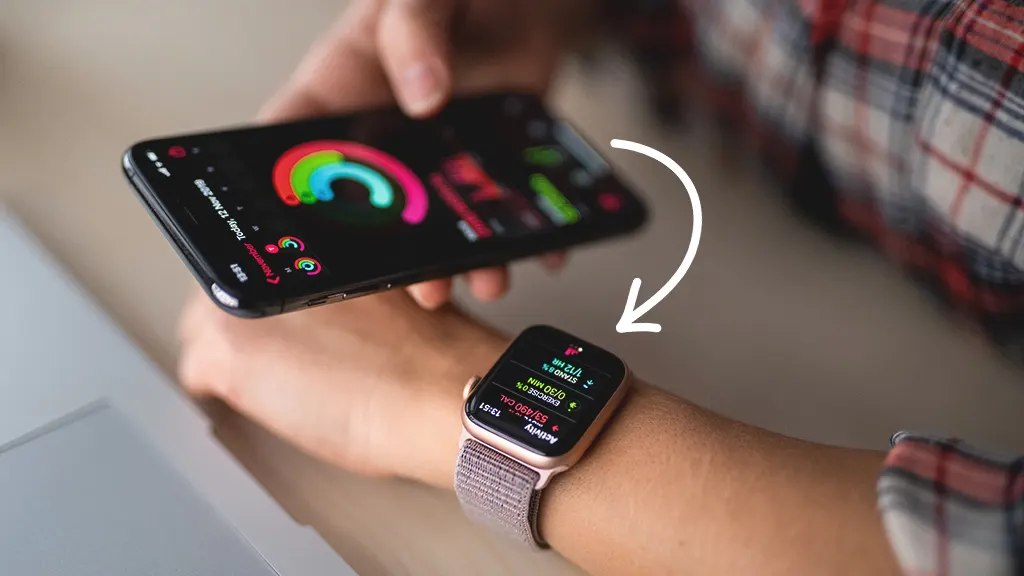
Why Is Your Smartwatch Not Connecting to Your Phone?
Before trying different solutions, it helps to understand what might be causing the issue. Most smartwatch connectivity problems are related to Bluetooth, software compatibility, app permissions, or temporary glitches.
Common reasons include:
Bluetooth is disabled on your smartphone.
Your smartwatch is already paired with another device.
The companion app is outdated or not working correctly.
Your phone or smartwatch needs a software update.
The devices are too far apart.
Required permissions have not been granted.
A previous pairing attempt was unsuccessful.
Identifying the possible cause can help you choose the right solution without unnecessarily resetting your device.
1. Check Your Bluetooth Connection
Bluetooth is essential for connecting most smartwatches to smartphones. If Bluetooth is disabled or experiencing a temporary issue, your devices may fail to connect.
How to fix it:
Open Settings on your smartphone.
Navigate to Bluetooth.
Turn Bluetooth off and wait approximately 10 seconds.
Turn Bluetooth back on.
Keep your smartwatch close to your phone and check whether it reconnects.
If your smartwatch still does not appear in the available devices list, restart both devices and try again.
Tip: Some smartwatches require pairing through their dedicated companion app rather than directly through the Bluetooth menu. Follow the manufacturer's recommended pairing process.
2. Restart Your Smartwatch and Smartphone
Temporary software glitches can interrupt communication between your smartwatch and phone. Restarting both devices can refresh their wireless connections and resolve minor technical issues.
Start by turning off your smartwatch and smartphone. Wait a few seconds, then switch them back on. Once both devices are ready, enable Bluetooth and open your smartwatch's companion app.
Allow a few moments for the devices to reconnect.
This simple method can often fix connection problems without changing your settings or deleting your personal data.
3. Make Sure You Are Using the Correct Companion App
Many smartwatches require a dedicated mobile app for setup, synchronization, and notifications. Using the wrong application or an outdated version can prevent successful pairing.
Depending on your device, you may need an app such as Apple Watch, Galaxy Wearable, or the companion app recommended by your smartwatch manufacturer.
Follow these steps:
Open the Google Play Store or Apple App Store.
Search for the official app for your smartwatch.
Check whether an update is available.
Install the latest version.
Open the app and follow the on-screen pairing instructions.
If you recently purchased a new smartwatch, confirm that it supports your phone's operating system before attempting to connect it.
4. Check Device Compatibility
Not every smartwatch works with every smartphone. Certain models require specific versions of Android or iOS, while some features are restricted to particular phone brands or operating systems.
For example, Apple Watch compatibility depends on the watch model and supported iPhone software. Similarly, some Samsung Galaxy Watch models have limited compatibility with iPhones or certain Android devices.
Before troubleshooting further, check the manufacturer's official compatibility requirements.
If your smartphone does not meet the minimum requirements, updating the companion app alone may not solve the issue. You may need a compatible smartphone to access all smartwatch features.
5. Forget the Device and Pair It Again
If your smartwatch was previously connected but no longer pairs correctly, removing the old Bluetooth connection and setting it up again may help.
How to reconnect your smartwatch:
Open your smartphone's Bluetooth settings.
Find your smartwatch in the list of paired devices.
Select the device and choose Forget, Unpair, or Remove.
Open the official smartwatch companion app.
Follow the instructions to pair the watch again.
Keep in mind that some smartwatches require you to unpair through their companion app rather than through Bluetooth settings alone.
Before unpairing, make sure your data has synced where possible. Depending on your device, unpairing or resetting may affect locally stored settings or unsynced information.
6. Enable the Required App Permissions
Your smartwatch may connect successfully but still fail to display calls, messages, or other notifications. This can happen when the companion app lacks the necessary permissions.
To resolve the issue, open your phone's Settings and locate the permissions or app settings for your smartwatch companion app.
Depending on your phone and smartwatch, check access to:
Bluetooth and nearby devices
Notifications
Contacts and call-related permissions, if required
Background activity or battery optimization settings
On Android, certain devices may restrict background app activity to conserve battery power. Allowing the companion app to run in the background can improve synchronization.
On iPhone, check Bluetooth access, notification settings, and any other permissions requested by the official app.
Only grant permissions necessary for the features you want to use.
7. Update Your Phone and Smartwatch Software
Outdated software can cause compatibility problems, connection failures, and synchronization errors.
Check your smartphone for available operating system updates. You should also open your smartwatch companion app to see whether a watch software update is available.
For your smartphone:
On Android, open Settings and look for System Update or Software Update.
On iPhone, navigate to Settings > General > Software Update.
For your smartwatch:
Open the manufacturer's companion app or the watch's settings menu and check for available updates.
Keep both devices sufficiently charged and connected to a reliable network when installing updates. If the watch cannot connect long enough to update, try the other troubleshooting steps first.
8. Keep Your Devices Within Bluetooth Range
Bluetooth connections can become unstable when your phone and smartwatch are too far apart or separated by obstacles that interfere with the signal.
Place your smartwatch near your smartphone, preferably within a few metres, and try reconnecting.
You should also check whether your phone is connected to other Bluetooth accessories that might be contributing to a temporary connection issue.
If your smartwatch reconnects when placed close to your phone, the problem may be related to signal range or interference rather than a software fault.
9. Check Battery and Power-Saving Settings
Low battery levels and aggressive power-saving settings can affect smartwatch performance and background synchronization.
Charge both devices and disable battery-saving modes temporarily to see whether the connection improves.
On Android, check whether battery optimization is restricting the smartwatch companion app. On your smartwatch, review any power-saving mode that may limit Bluetooth or background features.
Keep in mind that battery-saving behavior varies by manufacturer, and some modes may intentionally disable certain functions.
10. Reset Network Settings or Factory-Reset the Watch
If none of the previous methods works, a more advanced reset may be necessary.
You can consider resetting your phone's network settings if Bluetooth connectivity problems affect multiple devices. Be aware that this may remove saved Wi-Fi networks, Bluetooth pairings, and other network preferences.
A factory reset of your smartwatch should be a last resort because it may erase personal settings, locally stored data, and installed apps.
Before proceeding:
Sync or back up your smartwatch data where possible.
Check the manufacturer's reset instructions.
Confirm that you know the account credentials required to set up the device again.
Reset the watch only if simpler troubleshooting methods have failed.
After the reset, open the official companion app and follow the initial setup instructions.
What to Do If Your Smartwatch Still Won't Connect
If your smartwatch remains disconnected after trying these solutions, the issue may involve a hardware fault, a damaged Bluetooth component, a software bug, or a compatibility limitation.
Check the manufacturer's support resources or contact an authorized service centre if the problem continues. If the smartwatch was recently purchased, review the seller's warranty and return policy before attempting repairs.
Frequently Asked Questions
Why won't my smartwatch connect to my phone through Bluetooth?
Your smartwatch may fail to connect because Bluetooth is disabled, the devices are already paired incorrectly, the companion app is outdated, or the devices are incompatible. Restart both devices and try pairing again through the official app.
How do I reconnect my smartwatch after changing phones?
Install the smartwatch's official companion app on your new phone and follow its setup instructions. Depending on the model, you may need to unpair the watch from your previous phone or reset it before pairing again. Back up your data first.
Why is my smartwatch connected but not receiving notifications?
Check notification permissions, Bluetooth access, background activity, and notification settings on both devices. Also make sure that Do Not Disturb or a similar focus mode is not blocking alerts.
Will resetting my smartwatch fix connection problems?
A factory reset can resolve certain persistent software or pairing issues, but it is not guaranteed to fix every problem. Try restarting, updating, and pairing the device again before performing a reset.
Final Thoughts
A smartwatch that will not connect to your phone can be frustrating, especially when you rely on it for calls, notifications, fitness tracking, and everyday convenience. Fortunately, most connectivity issues can be resolved by checking Bluetooth, restarting both devices, updating the companion app, verifying compatibility, or pairing the watch again.
If the problem persists after these steps, consult the manufacturer's support team to determine whether your smartwatch needs additional troubleshooting or repair.
For the best experience, choose a smartwatch that is compatible with your smartphone and keep both devices updated. A reliable connection helps you make the most of your wearable technology every day.